Upgrading Gemini TTS from 3.1 to 3.8: What to Watch Out For
Gemini TTS 3.8 changes how style instructions, audio output, and voice selection work. This article explains the issues we encountered when migrating from 3.1, including instructions being read aloud and WAV header noise, and shows a practical workflow for more stable TTS production.

On this page
When we upgraded our Gemini text-to-speech (TTS) model from the 3.1 series to the 3.8 series, the model started reading our style instructions out loud. The audio became much longer than before, and some clips even repeated the same sentence.
This article explains the difference we ran into while developing audio content, and what caused it. We also cover how to choose a voice now that 3.8 offers far more of them, and how we build TTS audio content in separate stages.
The content is based on the official Gemini API documentation as of November 16, 2026, and on what we verified in our own development.
Where the instructions go: 3.1 vs. 3.8
With the 3.1 TTS model (gemini-3.1-flash-tts-preview), we sent the style instructions and the script line together in a single text. For example:
[Instructions]
Speak in a calm tone, slowly and carefully.
Leave a short pause between sentences.

[Script]
This is one of the water lily series the painter created late in life.
With 3.1, the model followed the instructions and read only the script line. When we sent the same format to the 3.8 models (gemini-3.8-flash-tts / gemini-3.8-flash-lite-tts), they read the [Instructions] part aloud as well.
The official documentation states that 3.8 treats the text as the exact transcript to be spoken.
Gemini 3.8 TTS treats the text field strictly as a verbatim transcript.
— Text-to-speech generation (TTS)
In 3.8, style instructions go into the style field of speech_metadata. The text contains only the line to be spoken.
{
  "parts": [{
    "text": "This is one of the water lily series the painter created late in life.",
    "speech_metadata": { "style": "calm tone, slow and careful" }
  }]
}
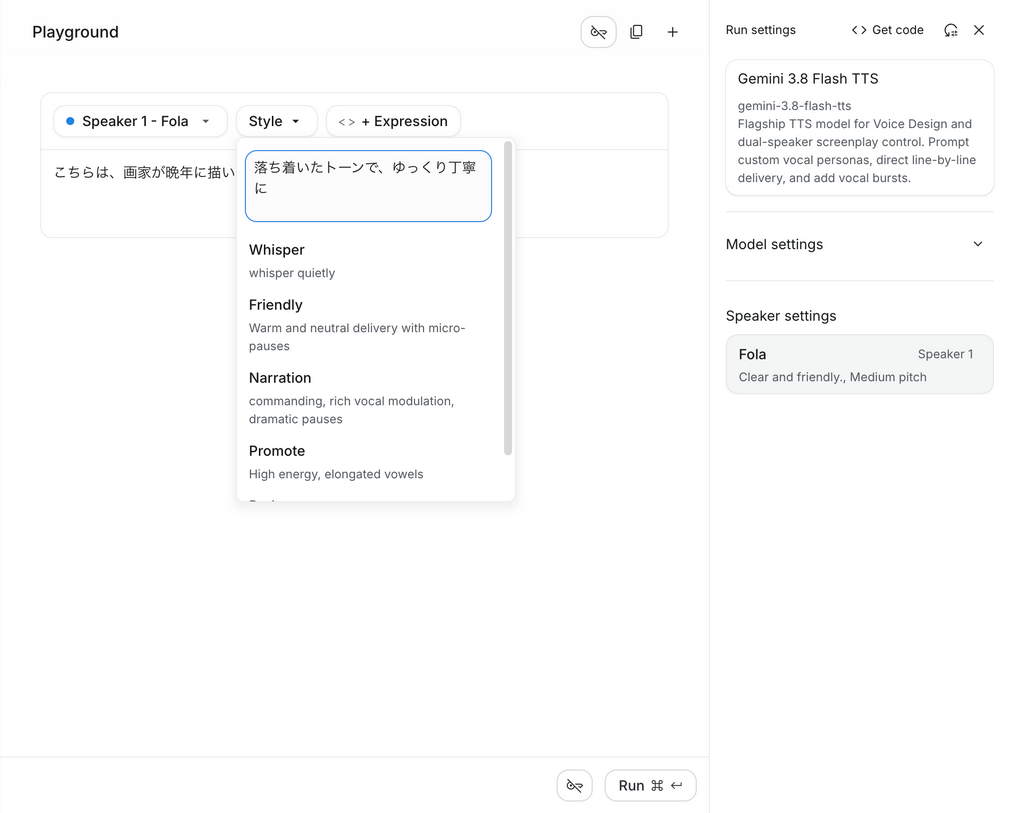
Google AI Studio also has separate fields for the line and for "Style".
The official migration guide lists five things to review when upgrading from 3.1 to 3.8.
| Change | Details |
|---|---|
| Separate style from transcript | Move style instructions to speech_metadata.style; keep the text to the transcript and vocal tags only |
| Design personas with Voice design | Replace long persona descriptions with a voice ID created in Voice design |
| Send dialogue turn by turn | Send one item per speaker turn instead of writing "Speaker: line" in one text |
| Use angle brackets for vocal tags | Use <laugh>, <sigh>, <short pause>, etc.; avoid sound-effect tags |
| New default audio format | 3.1 returned headerless PCM; 3.8 returns WAV with a header |
We ran into both the first and the fifth.
The returned audio format
In 3.8, the format of the returned audio also changes. The fifth change caused noise in our audio.
3.1 returned raw audio data (PCM) without a header. 3.8 returns a WAV file with a header at the beginning.
If you treat the whole response as audio data, as you could with 3.1, the header is played back as sound too. In our case, a click appeared at the start of each clip and noise at the end.
There are two fixes. Either extract only the audio data (the data chunk) from the WAV, or request audio/l16 (headerless PCM) as the response format. The Limitations section of the official documentation also says to strip the header before concatenating clips generated line by line.
After we adapted our pipeline to 3.8, both the instruction read-aloud and the noise disappeared.
Choosing a voice
Where the instructions go is not the only change in 3.8. The number of available voices has grown substantially.
With 3.1, you basically chose from 30 voices. With 3.8, in addition to those 30, hundreds of voices are available in what is called the Extended Voice Library. The search box in AI Studio shows "Search 2,000+ voices".
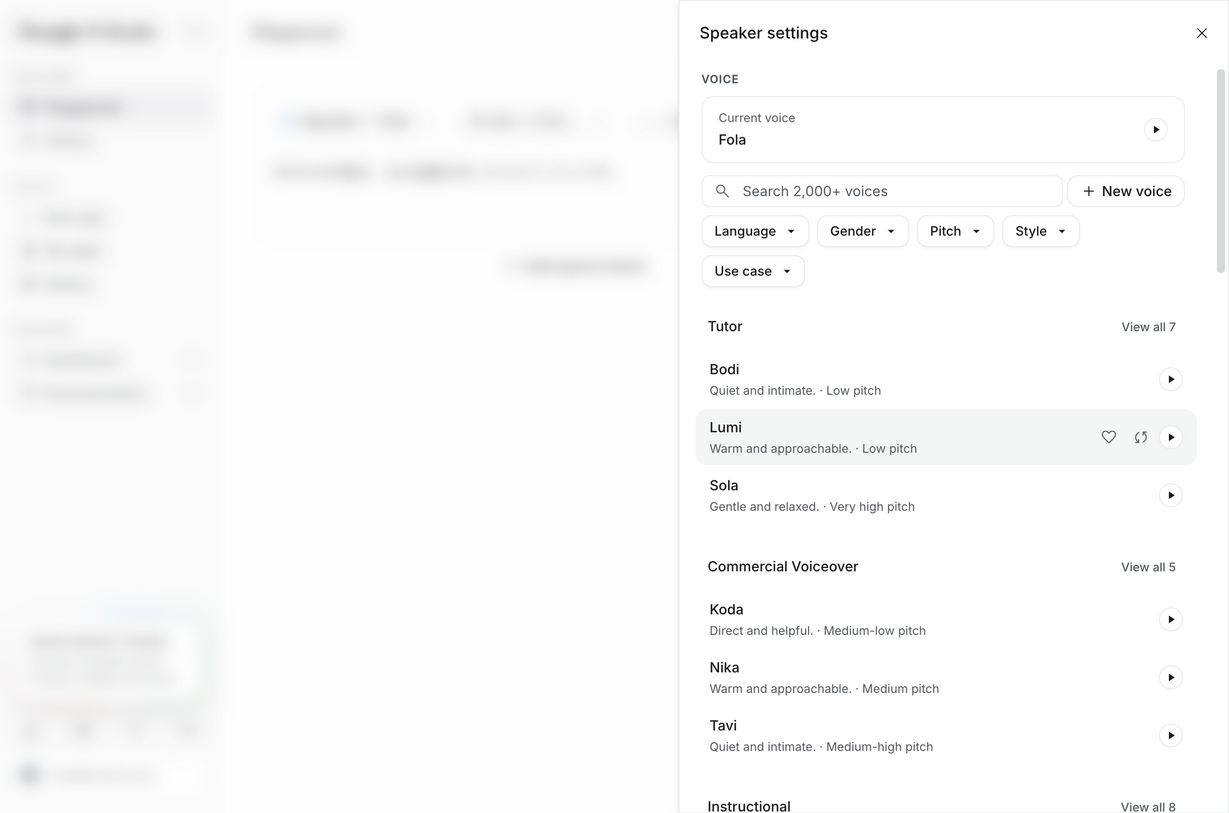
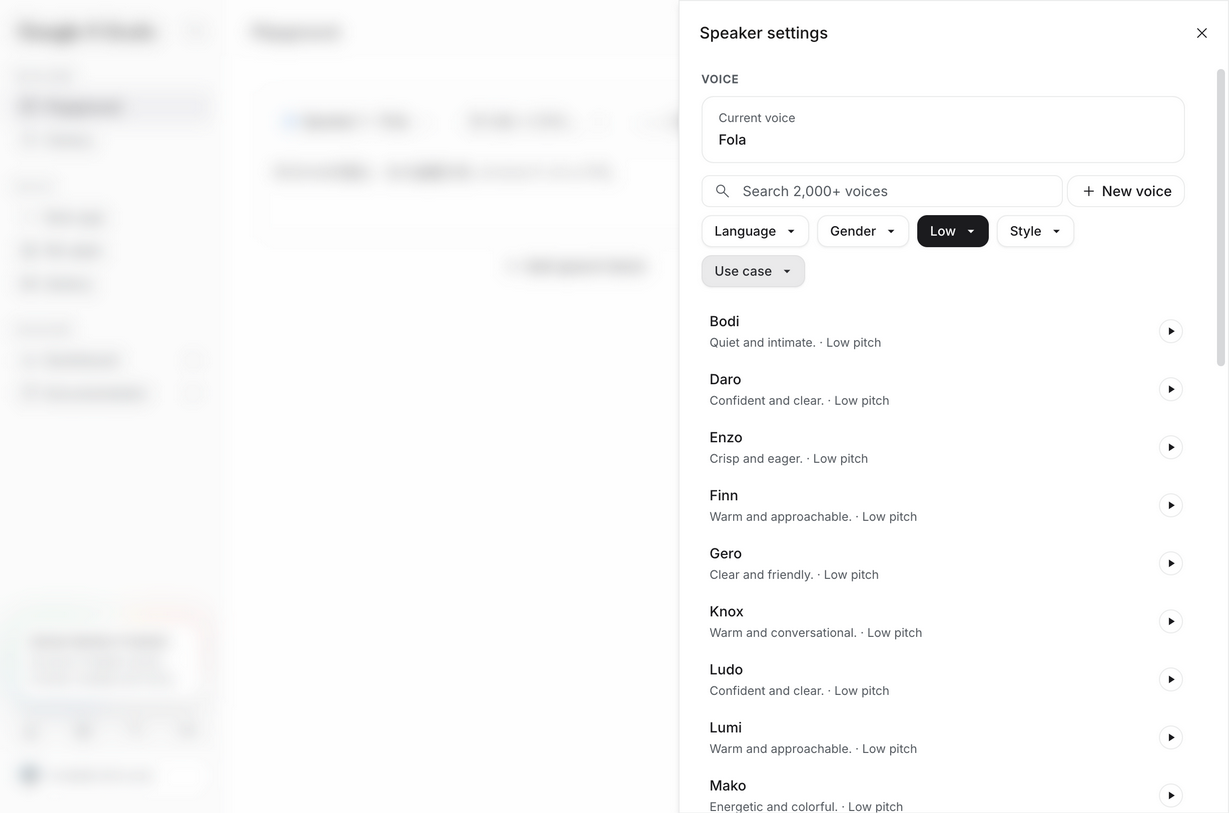
With this many voices, listening to them one by one is not realistic. Speaker settings in AI Studio lets you filter by language, gender, pitch, style and use case.
For calm content such as artwork commentary, we recommend combining two filters: Gender and Pitch. Setting Pitch to Low alone already narrows the list considerably.
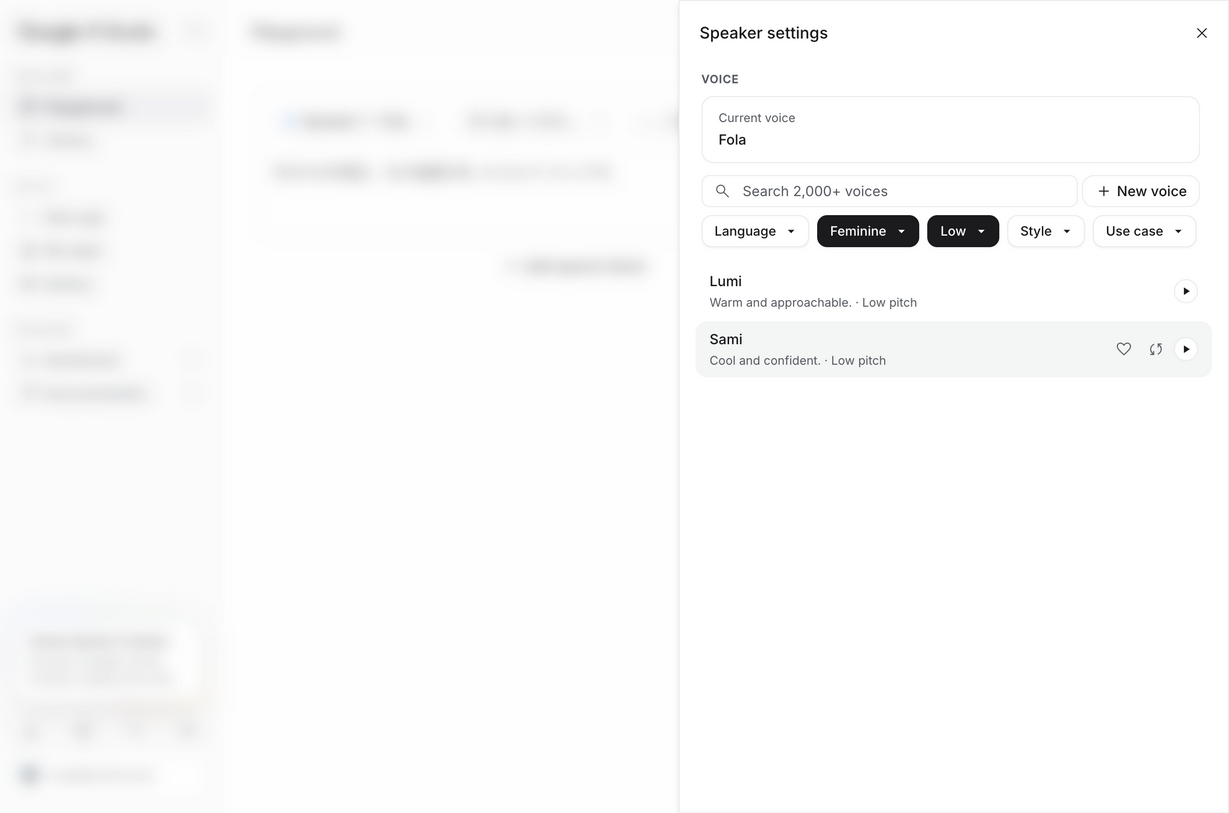
Adding Gender = Feminine narrowed it down to just two candidates. At that point, you can listen to all of them in a few minutes. Descriptions such as "Warm and approachable" or "Cool and confident" are also good hints.
When producing Japanese narration, it is easier not to filter by Language = Japanese. If you filter by Japanese and then add gender or pitch, almost nothing is left. With a free API key, the combination of Japanese and Low returned zero voices. Voices that are not registered for Japanese still read Japanese reasonably well. Leave the language unspecified, filter by gender and pitch, and compare the candidates by having them read your actual lines.
The same filtering is available through the API. voices.list() (GET /v1beta/voices) accepts filters such as language_code, gender, pitch and contexts. A quick workflow is to shortlist voices in AI Studio and then confirm the voice IDs for production through the API.
Adjusting the mood with style instructions
After choosing a voice, you can fine-tune the delivery with a style instruction. The Style field in AI Studio offers examples such as "Whisper", "Friendly", "Narration" and "Podcast". You can also write freely, for example "calm, low tone, slow and careful".
However, the official Prompting guide advises against long instructions.
Long-form "Audio Profile" paragraphs and multi-bullet "Director's Notes" carried over from earlier models are the most common cause of voice drift.
— Text-to-speech generation (TTS) / Prompting guide
The guide recommends the following.
- Generate with an empty
stylefirst. Most requests need no instruction at all - Add a short instruction only to lines that need adjustment (e.g. "casual, friendly")
- To keep a consistent delivery, reuse the same short instruction for every line
- Do not try to change inherent traits such as age, gender or accent with
style. Change them by choosing a different voice or with Voice design - Do not add reminders such as "keep the same voice". More instructions cause more drift
If you built your voice with long instructions in 3.1, it is more stable to shorten them when moving to 3.8 and adjust by choosing a different voice.
Building audio in stages
Finally, here is how we build TTS audio content. Rather than turning a whole document into audio at once, we split the work into the following stages.
| Stage | What it does | What we use |
|---|---|---|
| 1. Script generation | Create the sequence of speakers and lines from source material (interview notes, Q&A, etc.) | Text generation model (Gemini 3.8 Flash), with JSON output specified |
| 2. Script post-processing | Add readings to words that are easy to misread | Dictionary and replacement |
| 3. Audio generation | Send each line to TTS one at a time | TTS model (Gemini 3.8 Flash-Lite TTS) |
| 4. Audio assembly | Adjust speed, insert silence between lines, normalize volume and join | Audio processing |
There are two reasons for splitting into stages.
First, generating long text as audio in one go tends to lower quality. In a long single generation, the tone may shift midway, or words may be skipped or repeated. With one request per line, you can regenerate only the lines that went wrong. The official guide also recommends splitting long responses into shorter turns rather than forcing them with stronger instructions.
Split long agent responses into shorter turns rather than reaching for stronger style prompts.
— Text-to-speech generation (TTS) / Prompting guide
Second, it makes problems easier to isolate. Whether the script content, the pronunciation or the voice quality is wrong determines which stage to fix. If you keep the intermediate files for each stage (the script JSON and the audio for each line), you can later check where things broke. We found the instruction read-aloud issue this time by comparing the length of each line's audio.
Note that with up to two speakers using prebuilt voices from AI Studio, you can also generate a whole conversation in a single request. To combine custom voices created with Voice design or similar, you need to generate each speaker separately (see Limitations in the official documentation).
Summary
When upgrading Gemini TTS from 3.1 to 3.8, check the following.
・Move style instructions to speech_metadata.style and put only the spoken line in the text
・The returned audio is WAV with a header. Strip it before joining, or request audio/l16
・There are over 2,000 voices. In AI Studio, leave the language unspecified, combine gender and pitch filters, then compare
・Keep instructions short. Try without any first, and add them only to lines that need them
・Separate script generation from audio generation, and generate audio one line at a time
Upgrading a model version can change results even for the same request. Read the official Migration guide before migrating, and set up automatic checks on audio length and on the start and end of each clip so you can notice differences early.
At Vitalify Asia, we develop audio content using speech synthesis and products that embed generative AI. We have experience with the kind of model migration and voice and script tuning described in this article. If you have any challenges with speech synthesis or generative AI, feel free to contact us here.
Since 2008, VFA has been involved in more than 1,000 development projects. We also have many projects that are not publicly listed, so please feel free to ask us for details.
Vitalify Asia's development portfolio
Each service's specifications are updated continuously. This article reflects information as of November 16, 2026.
Vitalify Asia Co., Ltd. https://vitalify.asia/
Struggling to turn ideas into reality? With a proven track record of over 1,000 clients, our agile and flexible team will accelerate your business growth.